
Head Tracker Troubleshooting Guide
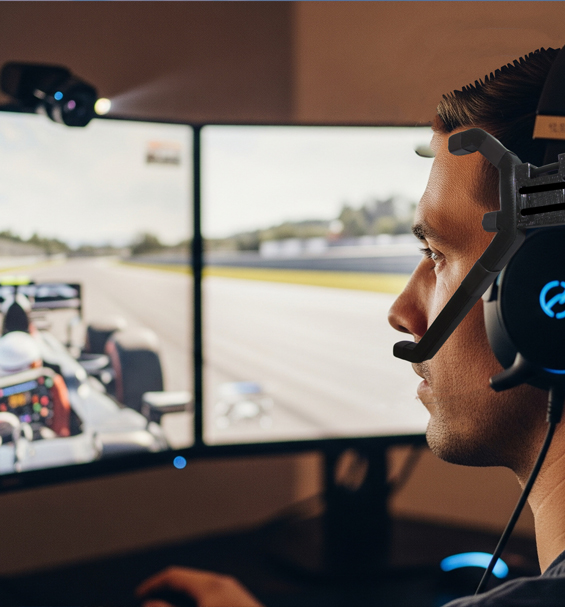
Welcome to our complete head tracker troubleshooting guide, designed to help you resolve common hardware and software issues quickly. Follow these testing steps below to fix signal loss, axis drift, or power delivery problems on your setup.
Essential Head Tracker Troubleshooting Steps
Getting your tracking setup running smoothly takes a bit of fine tuning. However, hardware issues or software misconfigurations can break positional movement. Therefore, effective testing starts by isolating physical LED problems from software mapping issues. Following structured steps ensures fluid 6DOF tracking across all simulator games.
Checking IR LED Hardware and Power Delivery
Check power delivery first if your camera cannot pick up infrared points. Because USB power ports sometimes limit current, dim LED output can occur. For instance, test your hardware on a different USB port directly on your motherboard.
Additionally, verify all wire connections and solder joints are intact. Use a digital multimeter to check voltage across each diode. Because infrared light is invisible to human eyes, use a smartphone camera to see if LEDs glow. If any LED stays dark, inspect the inline resistor and wiring polarity immediately.
Head Tracker Troubleshooting for OpenTrack Interference
Unwanted background light is a frequent cause for tracking loss. For example, sunlight, bright lamps, or reflective surfaces confuse camera sensors. Consequently, you must adjust the camera gain and threshold sliders inside your tracking software.
Lower exposure levels until only three bright LED points remain visible. Furthermore, ensure your visible light filter covers the camera lens completely. As a result, proper filtering blocks background glare while passing pure infrared light to the sensor.
Correcting Axis Drift and Motion Inversion
Jittery movement usually stems from incorrect model dimensions during setup. Because OpenTrack requires exact point spacing measurements to calculate rotation, measure the distance between your LED points in millimeters. After that, update your model profile.
Similarly, inverted tracking directions are simple to fix in software settings. Invert pitch, roll, or yaw axes inside the mapping tab. Finally, fine-tune deadzones around the center point to keep your view steady during straight flight.
If you still need head tracker troubleshooting advice after following these steps, reach out to us. Visit our official customer contacts page for direct technical assistance. Additionally, browse our head tracking setup blogs for detailed guides, or check the official OpenTrack GitHub repository for updated releases.