
Getting Started with OpenTrack: A Guide for Your New Gaming Head Tracker
If you need a complete opentrack setup guide head tracker configuration, configuring your software properly ensures smooth 6DOF tracking across every simulator. Consequently, getting your software dialled in allows you to experience seamless cockpit movement in minutes.
So you unboxed your new unit, and you are ready to dive into a new level of immersion. The key to unlocking its power is a fantastic piece of free software: OpenTrack. Think of it as the brain behind the hardware. Therefore, this guide covers the essential steps to get you up and running.
Why Follow an OpenTrack Setup Guide Head Tracker Walkthrough?
OpenTrack is the community standard for a reason. Specifically, it is free, highly customizable, and compatible with almost any clip unit. In addition, this powerful combination creates an ideal solution, giving you complete control over your response curves without high software costs.
Initial Steps in the OpenTrack Setup Guide Head Tracker Process
When you first open the software interface, the options can seem detailed. However, for an optimal setup, you only need to focus on three core dropdown menus:
1. Input Selection
First, select your input source. For most clip-based infrared units, select “PointTracker 1.1” from the dropdown. Because this setting instructs the program to monitor light points on your headset, it ensures precise positional calculation.
2. Output Protocol
Second, choose how the software communicates with your games. For example, the most common and widely supported option is “freetrack 2.0 Enhanced”. As a result, virtually all flight and racing simulators recognize your movements instantly.
3. Data Filtering
Third, apply filtering to smooth out raw spatial data. Specifically, selecting “Accela” provides an excellent balance of speed and stability. Furthermore, filtering prevents subtle head jitter while preserving quick reflex movements.
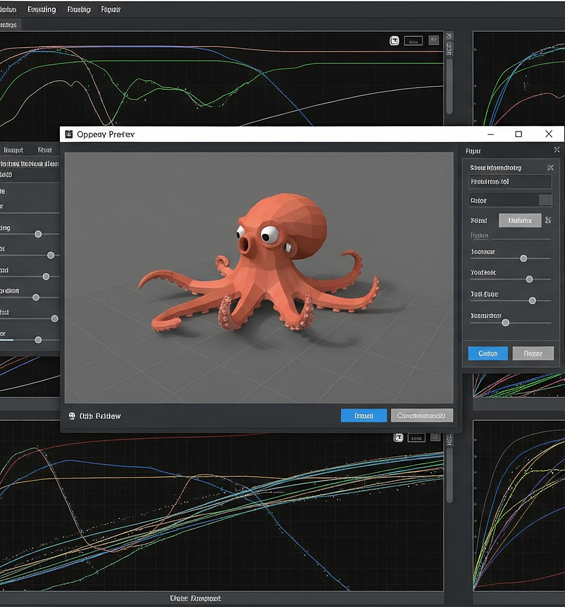
Once you set these three options, click “Start” to see the octopus avatar mirror your movements in real time.
Mapping Control Hotkeys for Your Head Tracker
Before launching your favorite simulator, assigning a center hotkey is critical. In addition, navigate to Options and select the Shortcuts tab. Assign an accessible button to the Center function, which lets you instantly recalibrate your view position during flights or races.
Flight Simulation and Racing Calibration with OpenTrack
Whether you require precise tracking for flight simulators or quick response for sim racing, fine-tuning mapping curves delivers optimal performance. Consequently, tweaking deadzones and maximum limits ensures comfortable view control without straining your neck.
Therefore, following this configuration transforms your hardware into a high-performance system ready for any flight or driving title.