Posted on

Your First DIY Head Tracker: A Step-by-Step Assembly Guide

Your First DIY Head Tracker: A Step-by-Step Assembly Guide

If you want to build custom gear, following a clear diy head tracker guide makes the entire process fast and easy. Consequently, assembling your own tracking kit gives you total control over your sim setup.
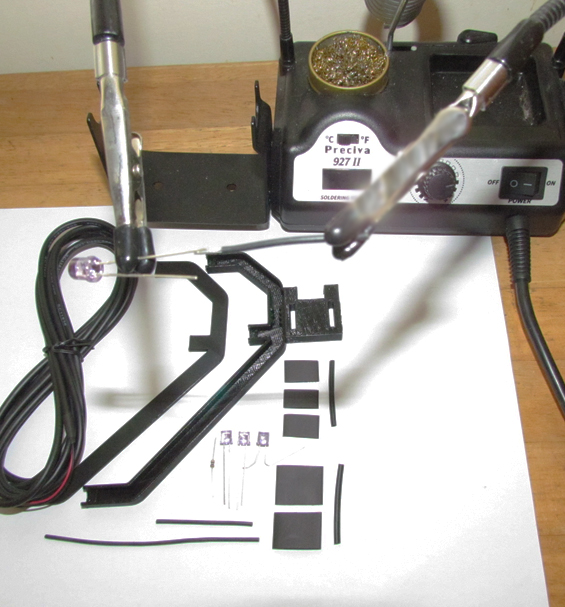
A complete diy head tracker assembly kit with circuit board and components

There is a special satisfaction that comes from building your own gear. Specifically, our DIY Head Tracker Kits provide everything you need to create a high-performance 6DOF unit. Therefore, this comprehensive diy head tracker guide will walk you through each stage of construction.

Ready to start your project? Grab your complete DIY Head Tracker Kit from our shop!

Essential Tools for Assembly

Your kit includes core components like the printed circuit board (PCB), IR LEDs, resistor, and USB cable. In addition, you will need a few basic workshop tools before starting:

  • A soldering iron and solder
  • Wire cutters and strippers
  • A helping hands tool for stability
  • Protective eyewear

Step-by-Step Build Instructions

Step 1: Preparing the Board and Components

First, lay out your PCB and components on a clean workspace. Next, identify positions for each of the three IR LEDs and the resistor. Note that LEDs have polarity, meaning the longer leg is the positive anode. Furthermore, the PCB board features markings showing exact orientation.

Step 2: Soldering the Components

Carefully solder the resistor and each LED onto the circuit board. For best results, solder joints should look shiny and cone-shaped rather than dull. Because soldering irons generate intense heat, always work in a well-ventilated space with protective eyewear.

Safety First! Always exercise caution when handling hot equipment and sharp wire ends during assembly.

Step 3: Final Wiring and OpenTrack Testing

In addition, attach the USB power cable to the designated pads on the board. Once assembled, connect the tracker to your PC and launch open-source software like OpenTrack to calibrate your device. As a result, you gain natural 6DOF head movement across your favorite simulators.

Why Choose a Custom DIY Head Tracker Setup?

Building your own infrared clip delivers commercial-grade tracking performance at a fraction of the cost. Furthermore, maintaining or modifying your rig in the future becomes simple once you understand the basic hardware structure. Therefore, DIY building is the best route for custom setups.

Consequently, congratulations on completing your custom build! Now you are ready to enjoy full virtual cockpit immersion.
Posted on

Getting Started with OpenTrack: A Guide for Your New Gaming Head Tracker

Getting Started with OpenTrack: A Guide for Your New Gaming Head Tracker

If you need a complete opentrack setup guide head tracker configuration, configuring your software properly ensures smooth 6DOF tracking across every simulator. Consequently, getting your software dialled in allows you to experience seamless cockpit movement in minutes.

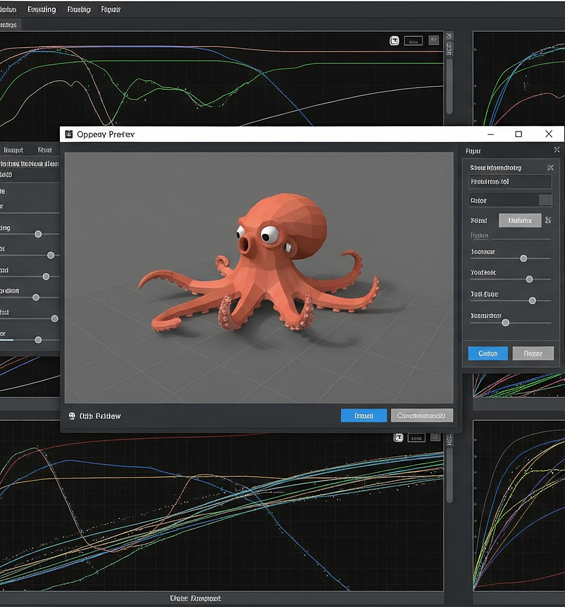
An opentrack setup guide head tracker software layout showing tracking curves

So you unboxed your new unit, and you are ready to dive into a new level of immersion. The key to unlocking its power is a fantastic piece of free software: OpenTrack. Think of it as the brain behind the hardware. Therefore, this guide covers the essential steps to get you up and running.

Why Follow an OpenTrack Setup Guide Head Tracker Walkthrough?

OpenTrack is the community standard for a reason. Specifically, it is free, highly customizable, and compatible with almost any clip unit. In addition, this powerful combination creates an ideal solution, giving you complete control over your response curves without high software costs.

Initial Steps in the OpenTrack Setup Guide Head Tracker Process

When you first open the software interface, the options can seem detailed. However, for an optimal setup, you only need to focus on three core dropdown menus:

1. Input Selection

First, select your input source. For most clip-based infrared units, select “PointTracker 1.1” from the dropdown. Because this setting instructs the program to monitor light points on your headset, it ensures precise positional calculation.

2. Output Protocol

Second, choose how the software communicates with your games. For example, the most common and widely supported option is “freetrack 2.0 Enhanced”. As a result, virtually all flight and racing simulators recognize your movements instantly.

3. Data Filtering

Third, apply filtering to smooth out raw spatial data. Specifically, selecting “Accela” provides an excellent balance of speed and stability. Furthermore, filtering prevents subtle head jitter while preserving quick reflex movements.

Once you set these three options, click “Start” to see the octopus avatar mirror your movements in real time.

Mapping Control Hotkeys for Your Head Tracker

Before launching your favorite simulator, assigning a center hotkey is critical. In addition, navigate to Options and select the Shortcuts tab. Assign an accessible button to the Center function, which lets you instantly recalibrate your view position during flights or races.

Flight Simulation and Racing Calibration with OpenTrack

Whether you require precise tracking for flight simulators or quick response for sim racing, fine-tuning mapping curves delivers optimal performance. Consequently, tweaking deadzones and maximum limits ensures comfortable view control without straining your neck.

Therefore, following this configuration transforms your hardware into a high-performance system ready for any flight or driving title.

Posted on

The Head Tracking Starter Kit: Your First Step to 6DOF Immersion

The Head Tracking Starter Kit: Your First Step to 6DOF Immersion

If you are looking for a 6dof head tracking starter kit, getting full spatial control transforms how you experience flight and racing simulators. Consequently, adopting modern motion hardware turns static gaming into a dynamic experience for simmers.

A 6dof head tracking starter kit mounted on a gaming headset

Have you ever played a flight or racing simulator and wished you could glance around the cockpit naturally? You are not alone. While a keyboard or hat-switch gets the job done, standard keys cannot replicate true spatial awareness. Therefore, setting up an infrared tracker provides the ultimate upgrade for your rig.

This guide introduces a revolutionary hardware setup that elevates your desktop arrangement. In addition, we will cover how simple infrared motion tracking works and why open hardware provides long-term value.

What is Included in a 6DOF Head Tracking Starter Kit?

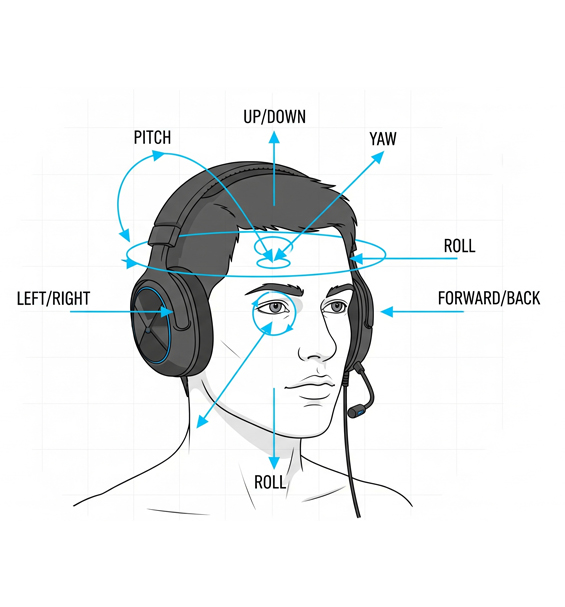
The term 6DOF stands for Six Degrees of Freedom, which remains key to realistic view movement. Specifically, an infrared setup acts as a high-precision sensor, capturing every subtle motion across six distinct axes:

  • Up/Down: Peering over the dashboard or ducking down in your seat.
  • Left/Right: Glancing at your side-view mirror or looking out side windows.
  • Forward/Back: Leaning in closer to check flight instruments or navigation displays.
  • Yaw: Turning your head left or right to follow target aircraft.
  • Pitch: Nodding your head up or down during landing approaches.
  • Roll: Tilting your head to align with horizon lines during turns.

By mapping these motions directly to your camera, your in-game view mirrors real-life movement. As a result, you gain natural control without relying on cumbersome VR headsets.

Why Choose an Open Infrared Setup?

For years, many simmers relied on expensive, closed options. However, pairing a durable USB infrared clip with free tools like OpenTrack delivers smooth performance at a fraction of the cost.

Furthermore, using a 6dof head tracking starter kit gives you high-precision tracking and plug-and-play compatibility. Because the setup integrates easily with popular software, you avoid complex configuration routines. Therefore, you enjoy professional-grade responsiveness that feels like a natural extension of your movement.

Why Flight and Racing Simulators Need 6DOF Vision

Directional vision control is essential for serious simulation enthusiasts. Specifically, it provides total cockpit immersion across titles like Microsoft Flight Simulator, DCS World, Assetto Corsa, and Euro Truck Simulator 2.

In addition, keeping your hands on the joystick or steering wheel allows faster reaction times. Consequently, tracking your target or corner apex becomes smooth and effortless.

Ultimately, upgrading your desktop rig with a 6dof head tracking starter kit gives you high performance and long-term hardware reliability.

Posted on

Troubleshooting Your OpenTrack Head Tracker

Troubleshooting Your OpenTrack Head Tracker: 5 Common Issues

Following a clear opentrack troubleshooting guide helps you resolve tracking issues quickly. Specifically, fine-tuning software settings eliminates erratic camera jumps and axis errors. Consequently, simmers can return to smooth 6DOF motion across their favorite flight and racing titles.

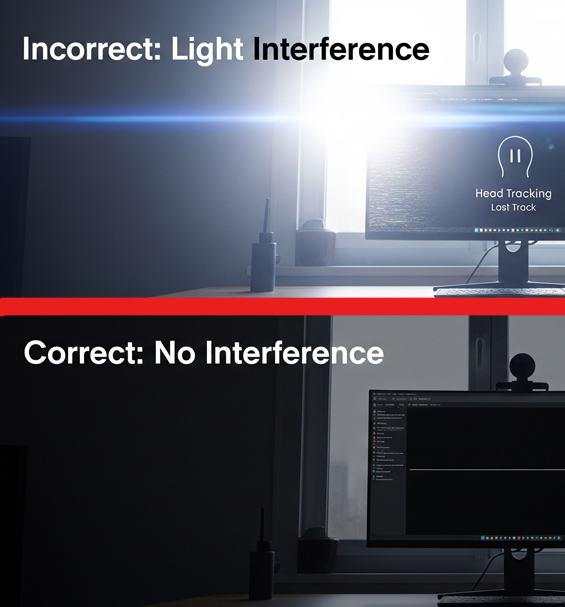
An opentrack troubleshooting guide diagram showing camera settings and input filters

Your active optical clip provides precise positional data, while open software handles axis mapping. However, environmental factors or misconfigured inputs can disrupt your view. Luckily, most tracking problems stem from simple setup conflicts. Resolving these minor settings takes only a few minutes.

1. OpenTrack Troubleshooting Guide for Motion Jitter

If your in-game view spins wildly, external background light is interfering with your camera. Sunlight from open windows, bright desk lamps, or reflective picture frames creates unwanted tracking points.

To fix this, open the PointTracker settings panel in OpenTrack. Increase the Threshold slider until the preview window displays only the three bright dots from your LED clip. Furthermore, dimming bright room lighting keeps your signal stable.

2. Resolve Game Detection and Input Failures

When your simulator fails to respond to head movement, the game hasn’t linked to your active profile. Always launch your tracking software before opening your flight or racing title.

In addition, verify that your Output protocol is set to freetrack 2.0 Enhanced. This protocol provides maximum compatibility across titles like DCS World, Assetto Corsa, and MSFS 2020. Certain games also require enabling head tracking manually in their control menus.

3. Correct Inverted Axis and Sensitivity Issues

If looking left turns your view right, an axis direction is inverted. Open the Options menu, navigate to the Output tab, and check the Invert box next to the inverted axis.

When movement feels too fast or sluggish, adjust your mapping curves. Open the Mapping menu and drag the curve line down to lower sensitivity, or pull it up to increase response. Adding a small deadzone at the center point prevents minor head twitching down long straights.

4. OpenTrack Troubleshooting Guide for View Centering

Off-center camera angles happen when your baseline position isn’t calibrated before driving or flying. Sit in your natural gaming posture, look directly at the center of your monitor, and press your dedicated Center hotkey.

Binding this command to an easily accessible button on your steering wheel or flight stick allows you to recalibrate your view instantly during long sessions.

Ultimately, keeping these simple adjustments in mind ensures reliable performance every time you step into the cockpit.

Posted on

What is a Head Tracker and How Does It Work

What is a Head Tracker and How Does It Work?

Learning what is a head tracker and how does it work helps simmers choose effective cockpit hardware. Specifically, active optical clips map real-world head movement directly into game engines. Consequently, virtual pilots and drivers gain fluid 6DOF control without wearing heavy virtual reality headsets.

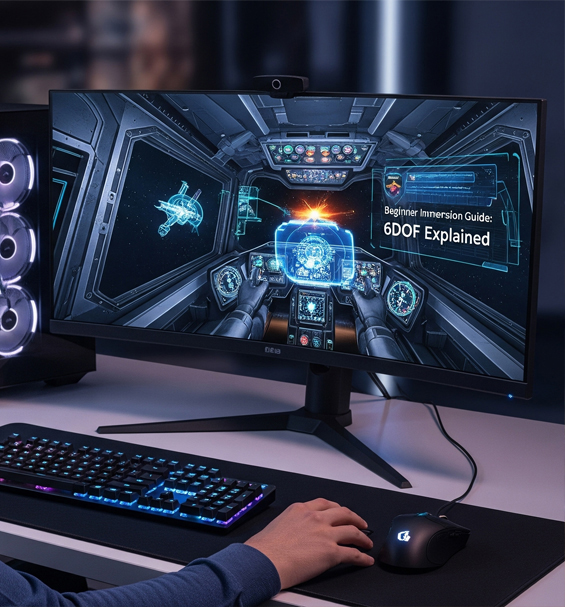
An illustration explaining what is a head tracker and how does it work in sim setups

If you are new to flight or racing simulators, you have likely heard players discuss motion hardware. At its core, an active clip translates subtle physical head turns into proportional camera movements on screen. This setup replaces manual hat switches and mouse looking, freeing your hands strictly for control inputs.

What is a Head Tracker and How Does It Work in Sim Games?

At its foundation, optical tracking relies on a dedicated sensor and an active light source. When you turn to look left, your in-game view rotates smoothly across the driver or pilot seat. Furthermore, leaning forward zooms your camera directly into dash gauges or flight instruments.

Because the movement uses multiplier curves, a small physical rotation of 20 degrees translates to a full 90-degree view turn. Therefore, you maintain clear line of sight with your monitor while scanning your entire virtual cockpit.

How Active Infrared Systems Process Motion

The most reliable tracking hardware uses active infrared (IR) light points. The system operates using two primary hardware components working in tandem:

  • The Active LED Clip: A lightweight bracket mounting three infrared points directly to your gaming headset.
  • The Filtered IR Camera: A specialized receiver sitting above your monitor, calibrated to track active light points while filtering background room light.

As your head moves, the camera records changing spatial coordinates between those three points. Open software like OpenTrack processes those coordinates instantly into six degrees of freedom (6DOF): pitch, yaw, roll, and x, y, z translation.

What is a Head Tracker and How Does It Work for Open Setups?

Active optical clips offer an ideal solution because they decouple hardware from closed, proprietary software ecosystems. You enjoy precise, zero-latency motion while maintaining total freedom to calibrate response curves, deadzones, and input filters.

Ultimately, combining an active clip with open mapping software delivers professional-grade accuracy, high durability, and maximum immersion across all major simulation titles.