
The Ultimate Guide to Setting Up Head Tracking in Assetto Corsa
Following a clear assetto corsa head tracking guide ensures your virtual cockpit feels natural and responsive. Specifically, active optical tracking delivers real-time 6DOF motion across Assetto Corsa and ACC. Consequently, drivers gain instant spatial awareness, making wheel-to-wheel racing safer and far more immersive.
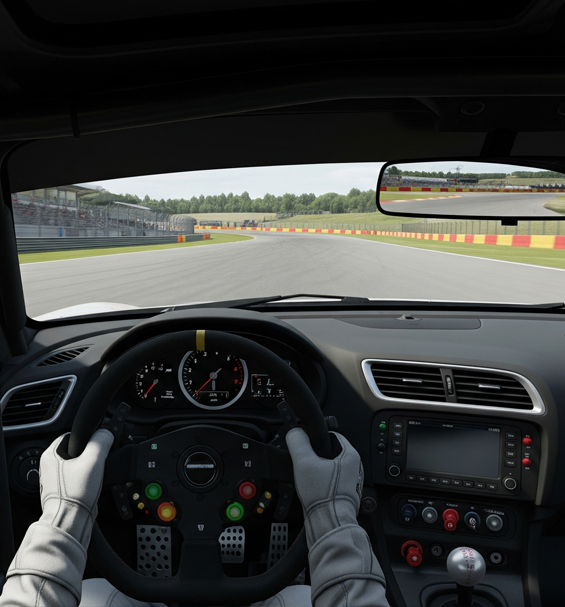
Assetto Corsa and ACC remain premier driving titles for sim racers around the world. However, fixed cockpit cameras limit your ability to spot apexes or check side mirrors naturally. Configuring a dedicated optical clip provides smooth head motion without needing bulky headsets or expensive display arrays.
Step 1: OpenTrack Software Configuration
To start, download and launch the latest version of OpenTrack. Set your input to PointTracker 1.1 when using an active infrared clip. Next, set your output protocol to freetrack 2.0 Enhanced, which provides native compatibility with Assetto Corsa. Finally, choose the Accela filter to smooth out minor motion jitter.
Press the Start button to test your input. The 3D octopus model should move smoothly as you rotate your head. Always assign a dedicated keyboard or steering wheel button to the Center command before jumping on track.
Step 2: In-Game Camera Settings
Launch Assetto Corsa or ACC and navigate directly to the View options menu. Make sure you select the main Cockpit View camera, as external chase views disable tracking signals. Set the Lock to Horizon slider near 50% to balance chassis motion with visual stability on bumpy circuits.
In addition, disable artificial head movement scripts or camera shake plugins. These third-party mods often interfere with incoming tracking data, causing erratic camera jumps during hard cornering.
Step 3: Assetto Corsa Head Tracking Guide Curve Tuning
Return to OpenTrack and open the Mapping menu to adjust response curves for Yaw and Pitch. For sim racing, you want a gentle non-linear curve. Set your Yaw axis so that rotating your head 20 degrees physically turns your in-game view 90 degrees. This balance allows you to check side mirrors effortlessly without taking your eyes off the screen.
Furthermore, add a small 2-degree deadzone around the center position. This keeps your view steady down long straights while preserving instant response during tight corner entries.
Ultimately, calibrating your optical clip properly unlocks unmatched cockpit awareness. You can react faster to nearby cars and hit apexes with total confidence every single lap.