
Troubleshooting Your OpenTrack Head Tracker: 5 Common Issues
Following a clear opentrack troubleshooting guide helps you resolve tracking issues quickly. Specifically, fine-tuning software settings eliminates erratic camera jumps and axis errors. Consequently, simmers can return to smooth 6DOF motion across their favorite flight and racing titles.
Your active optical clip provides precise positional data, while open software handles axis mapping. However, environmental factors or misconfigured inputs can disrupt your view. Luckily, most tracking problems stem from simple setup conflicts. Resolving these minor settings takes only a few minutes.
1. OpenTrack Troubleshooting Guide for Motion Jitter
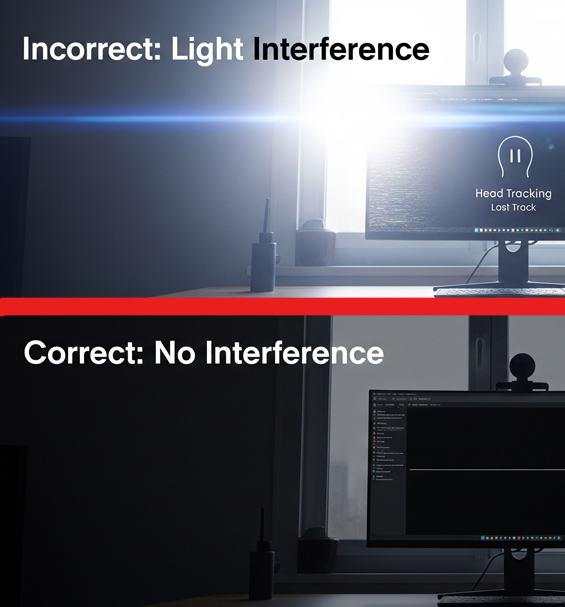
If your in-game view spins wildly, external background light is interfering with your camera. Sunlight from open windows, bright desk lamps, or reflective picture frames creates unwanted tracking points.
To fix this, open the PointTracker settings panel in OpenTrack. Increase the Threshold slider until the preview window displays only the three bright dots from your LED clip. Furthermore, dimming bright room lighting keeps your signal stable.
2. Resolve Game Detection and Input Failures
When your simulator fails to respond to head movement, the game hasn’t linked to your active profile. Always launch your tracking software before opening your flight or racing title.
In addition, verify that your Output protocol is set to freetrack 2.0 Enhanced. This protocol provides maximum compatibility across titles like DCS World, Assetto Corsa, and MSFS 2020. Certain games also require enabling head tracking manually in their control menus.
3. Correct Inverted Axis and Sensitivity Issues
If looking left turns your view right, an axis direction is inverted. Open the Options menu, navigate to the Output tab, and check the Invert box next to the inverted axis.
When movement feels too fast or sluggish, adjust your mapping curves. Open the Mapping menu and drag the curve line down to lower sensitivity, or pull it up to increase response. Adding a small deadzone at the center point prevents minor head twitching down long straights.
4. OpenTrack Troubleshooting Guide for View Centering
Off-center camera angles happen when your baseline position isn’t calibrated before driving or flying. Sit in your natural gaming posture, look directly at the center of your monitor, and press your dedicated Center hotkey.
Binding this command to an easily accessible button on your steering wheel or flight stick allows you to recalibrate your view instantly during long sessions.
Ultimately, keeping these simple adjustments in mind ensures reliable performance every time you step into the cockpit.