Posted on

The Ultimate Guide to Setting Up Head Tracking

The Ultimate Guide to Setting Up Head Tracking in Assetto Corsa

Following a clear assetto corsa head tracking guide ensures your virtual cockpit feels natural and responsive. Specifically, active optical tracking delivers real-time 6DOF motion across Assetto Corsa and ACC. Consequently, drivers gain instant spatial awareness, making wheel-to-wheel racing safer and far more immersive.
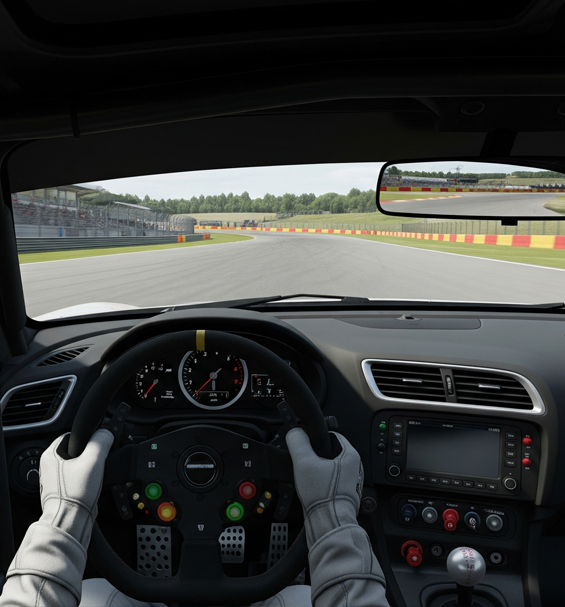
A detailed assetto corsa head tracking guide showing a GT car cockpit view

Assetto Corsa and ACC remain premier driving titles for sim racers around the world. However, fixed cockpit cameras limit your ability to spot apexes or check side mirrors naturally. Configuring a dedicated optical clip provides smooth head motion without needing bulky headsets or expensive display arrays.

Step 1: OpenTrack Software Configuration

To start, download and launch the latest version of OpenTrack. Set your input to PointTracker 1.1 when using an active infrared clip. Next, set your output protocol to freetrack 2.0 Enhanced, which provides native compatibility with Assetto Corsa. Finally, choose the Accela filter to smooth out minor motion jitter.

Press the Start button to test your input. The 3D octopus model should move smoothly as you rotate your head. Always assign a dedicated keyboard or steering wheel button to the Center command before jumping on track.

Step 2: In-Game Camera Settings

Launch Assetto Corsa or ACC and navigate directly to the View options menu. Make sure you select the main Cockpit View camera, as external chase views disable tracking signals. Set the Lock to Horizon slider near 50% to balance chassis motion with visual stability on bumpy circuits.

In addition, disable artificial head movement scripts or camera shake plugins. These third-party mods often interfere with incoming tracking data, causing erratic camera jumps during hard cornering.

Step 3: Assetto Corsa Head Tracking Guide Curve Tuning

Return to OpenTrack and open the Mapping menu to adjust response curves for Yaw and Pitch. For sim racing, you want a gentle non-linear curve. Set your Yaw axis so that rotating your head 20 degrees physically turns your in-game view 90 degrees. This balance allows you to check side mirrors effortlessly without taking your eyes off the screen.

Furthermore, add a small 2-degree deadzone around the center position. This keeps your view steady down long straights while preserving instant response during tight corner entries.

Ultimately, calibrating your optical clip properly unlocks unmatched cockpit awareness. You can react faster to nearby cars and hit apexes with total confidence every single lap.
Posted on

Troubleshooting Your OpenTrack Head Tracker

Troubleshooting Your OpenTrack Head Tracker: 5 Common Issues

Following a clear opentrack troubleshooting guide helps you resolve tracking issues quickly. Specifically, fine-tuning software settings eliminates erratic camera jumps and axis errors. Consequently, simmers can return to smooth 6DOF motion across their favorite flight and racing titles.

An opentrack troubleshooting guide diagram showing camera settings and input filters

Your active optical clip provides precise positional data, while open software handles axis mapping. However, environmental factors or misconfigured inputs can disrupt your view. Luckily, most tracking problems stem from simple setup conflicts. Resolving these minor settings takes only a few minutes.

1. OpenTrack Troubleshooting Guide for Motion Jitter

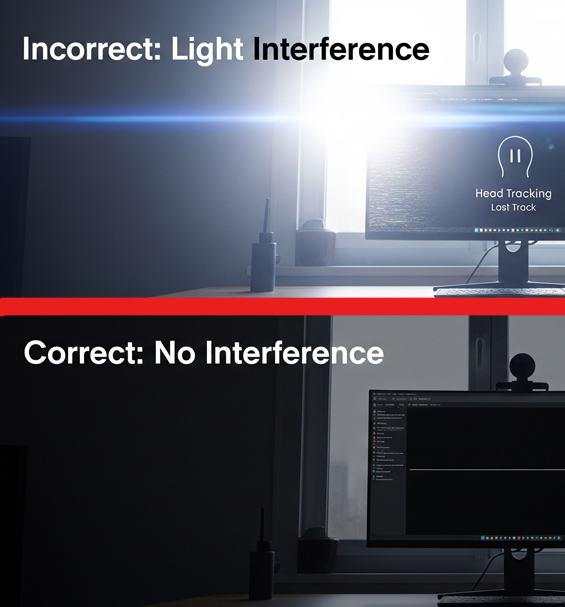
If your in-game view spins wildly, external background light is interfering with your camera. Sunlight from open windows, bright desk lamps, or reflective picture frames creates unwanted tracking points.

To fix this, open the PointTracker settings panel in OpenTrack. Increase the Threshold slider until the preview window displays only the three bright dots from your LED clip. Furthermore, dimming bright room lighting keeps your signal stable.

2. Resolve Game Detection and Input Failures

When your simulator fails to respond to head movement, the game hasn’t linked to your active profile. Always launch your tracking software before opening your flight or racing title.

In addition, verify that your Output protocol is set to freetrack 2.0 Enhanced. This protocol provides maximum compatibility across titles like DCS World, Assetto Corsa, and MSFS 2020. Certain games also require enabling head tracking manually in their control menus.

3. Correct Inverted Axis and Sensitivity Issues

If looking left turns your view right, an axis direction is inverted. Open the Options menu, navigate to the Output tab, and check the Invert box next to the inverted axis.

When movement feels too fast or sluggish, adjust your mapping curves. Open the Mapping menu and drag the curve line down to lower sensitivity, or pull it up to increase response. Adding a small deadzone at the center point prevents minor head twitching down long straights.

4. OpenTrack Troubleshooting Guide for View Centering

Off-center camera angles happen when your baseline position isn’t calibrated before driving or flying. Sit in your natural gaming posture, look directly at the center of your monitor, and press your dedicated Center hotkey.

Binding this command to an easily accessible button on your steering wheel or flight stick allows you to recalibrate your view instantly during long sessions.

Ultimately, keeping these simple adjustments in mind ensures reliable performance every time you step into the cockpit.

Posted on

What is a Head Tracker and How Does It Work

What is a Head Tracker and How Does It Work?

Learning what is a head tracker and how does it work helps simmers choose effective cockpit hardware. Specifically, active optical clips map real-world head movement directly into game engines. Consequently, virtual pilots and drivers gain fluid 6DOF control without wearing heavy virtual reality headsets.

An illustration explaining what is a head tracker and how does it work in sim setups

If you are new to flight or racing simulators, you have likely heard players discuss motion hardware. At its core, an active clip translates subtle physical head turns into proportional camera movements on screen. This setup replaces manual hat switches and mouse looking, freeing your hands strictly for control inputs.

What is a Head Tracker and How Does It Work in Sim Games?

At its foundation, optical tracking relies on a dedicated sensor and an active light source. When you turn to look left, your in-game view rotates smoothly across the driver or pilot seat. Furthermore, leaning forward zooms your camera directly into dash gauges or flight instruments.

Because the movement uses multiplier curves, a small physical rotation of 20 degrees translates to a full 90-degree view turn. Therefore, you maintain clear line of sight with your monitor while scanning your entire virtual cockpit.

How Active Infrared Systems Process Motion

The most reliable tracking hardware uses active infrared (IR) light points. The system operates using two primary hardware components working in tandem:

  • The Active LED Clip: A lightweight bracket mounting three infrared points directly to your gaming headset.
  • The Filtered IR Camera: A specialized receiver sitting above your monitor, calibrated to track active light points while filtering background room light.

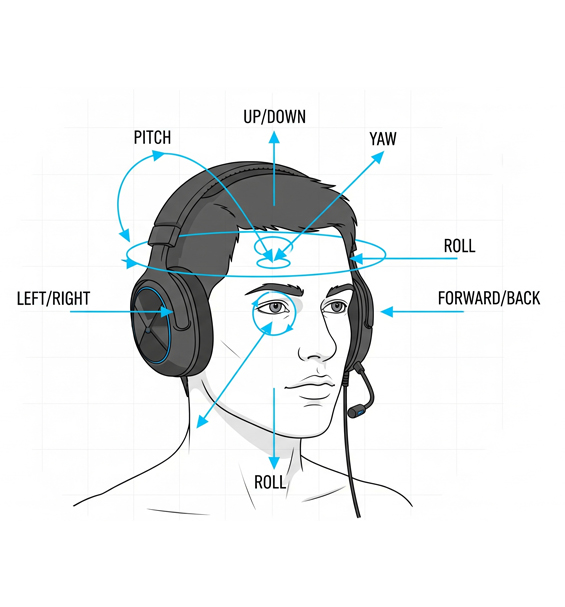
As your head moves, the camera records changing spatial coordinates between those three points. Open software like OpenTrack processes those coordinates instantly into six degrees of freedom (6DOF): pitch, yaw, roll, and x, y, z translation.

What is a Head Tracker and How Does It Work for Open Setups?

Active optical clips offer an ideal solution because they decouple hardware from closed, proprietary software ecosystems. You enjoy precise, zero-latency motion while maintaining total freedom to calibrate response curves, deadzones, and input filters.

Ultimately, combining an active clip with open mapping software delivers professional-grade accuracy, high durability, and maximum immersion across all major simulation titles.

Posted on

Infrared vs. Webcam Head Tracking

Infrared vs Webcam Head Tracking: Why IR is the Pro Choice

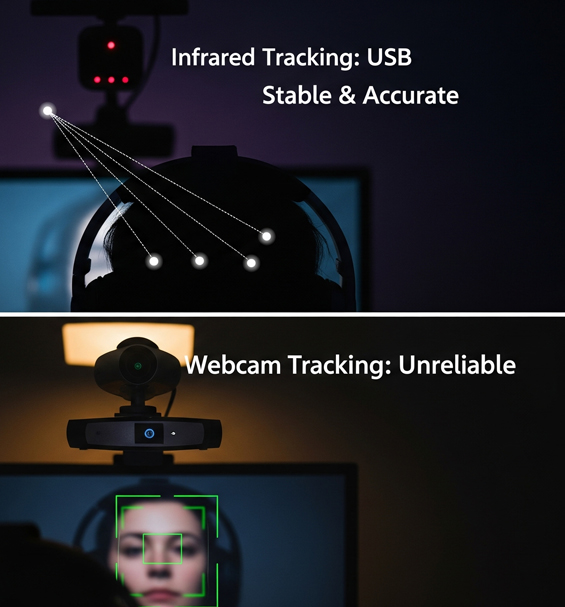
Evaluating infrared vs webcam head tracking helps gamers select reliable motion peripherals for virtual cockpits. Specifically, dedicated receivers provide high accuracy without consuming excessive system resources. Consequently, virtual pilots and sim racers enjoy smooth 6DOF control across all lighting conditions.

Infrared vs webcam head tracking hardware performance comparison diagram

When upgrading your flight or racing simulator setup, selecting the correct tracking method makes a massive difference. However, while software-based facial recognition uses standard cameras, dedicated active light arrays deliver superior stability. Therefore, understanding the structural differences between these two solutions ensures you choose the best hardware for your rig.

Webcam Performance: Convenience with Trade-offs

Standard camera tracking uses software algorithms to detect facial features like eyes, nose, and mouth. As a result, the main advantage of this approach is low entry cost, as many users already own a desktop camera.

However, processing full-color video streams requires significant CPU resources, which can reduce in-game frame rates during demanding flight or racing sessions. Furthermore, changing room light, shadows, or looking away from the camera often causes tracking loss, unexpected latency, and sudden camera jitter.

Infrared Head Tracking: Precision and Performance

An active infrared setup uses a filtered sensor paired with three active LED points mounted to your headset. Specifically, the sensor ignores visible ambient light, tracking only the distinct infrared signals emitted by your clip. Comparing these technologies highlights several distinct performance advantages:

  • Total Lighting Immunity: Active IR tracking operates flawlessly in complete darkness or bright sunlight.
  • Near-Zero System Overhead: Processing three light points requires minimal CPU usage, preserving maximum frame rates.
  • Sub-Millimeter Precision: High sensor refresh rates deliver instant 6DOF response without motion delay or axis drift.

Comparing Hardware Options for Simulation

While software tracking offers an easy entry point, active infrared hardware remains the gold standard for dedicated simmers. In addition, pairing an active IR clip with open software like OpenTrack grants complete control over response curves, deadzones, and input filtering.

Ultimately, choosing active infrared technology guarantees consistent accuracy, low latency, and long-term reliability for your cockpit setup.